

I love Claude Code and how it works from any folder. Just open your terminal, navigate to your project and run claude.
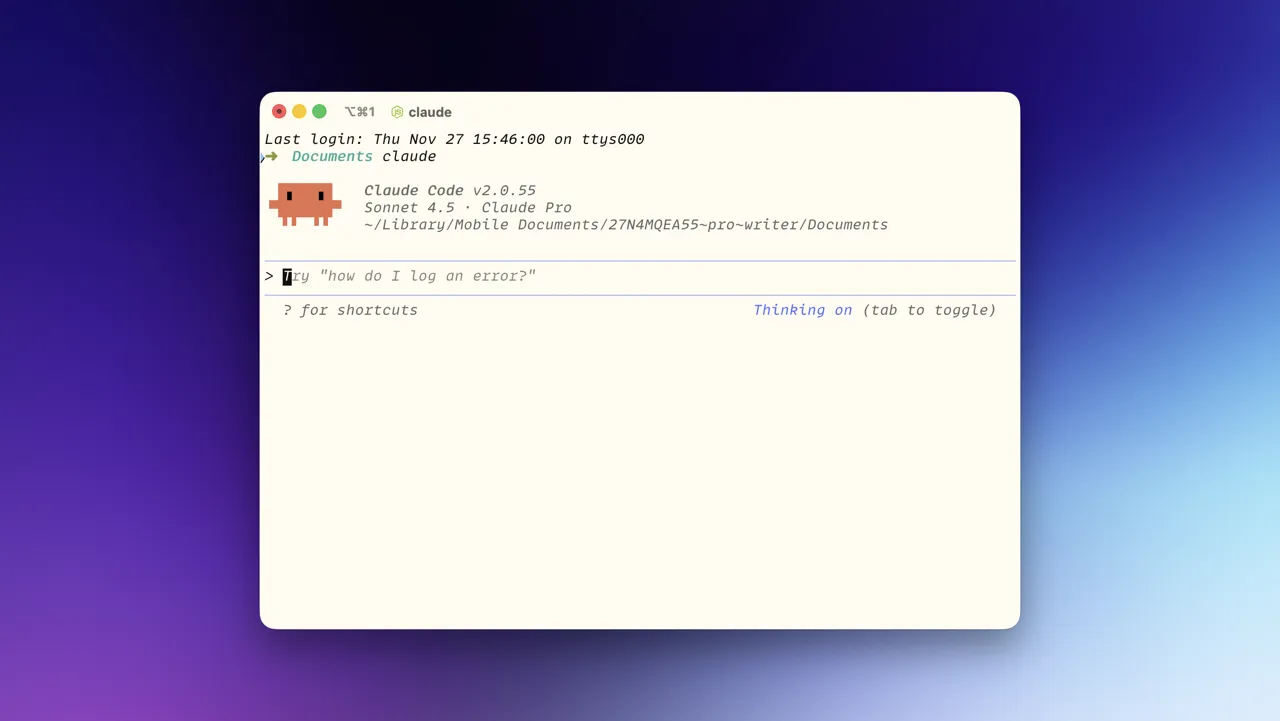
This is great because:
- Works with your existing setup. No need to move files or change structure.
- Access to full context. Claude can read any file in the project.
- Multiple projects easily. Switch between projects by changing directories.
- Terminal integration. Run commands, check git status, etc.
For your projects
Documentation matters more in an AI world. Good documentation allows Claude Code to help you in a better way. Poor documentation means Claude guesses or makes wrong assumptions.
What to document
Project purpose. What problem does this solve? Who is it for? What does success look like?
Architecture decisions. Why this structure? What alternatives were considered? What tradeoffs matter?
Example: For this project I’m using C# instead of Go because most of the developers I work with don’t know Go.
Constraints. Technical limitations. Performance requirements. Dependencies. Browser support. Platform restrictions.
Code patterns. Naming conventions. File structure. Component patterns. Style guidelines.
While Claude can infer most of this when using /init, it’s always best to double check and fix what it guessed wrong.
Where to document
README.md. Project overview, setup instructions, key decisions.
CLAUDE.md. Instructions specifically for Claude Code. Project-specific guidance.
Pro tip: You can ask Claude to edit its memory using /memory or, if you’re on a rush, #.
My notes setup
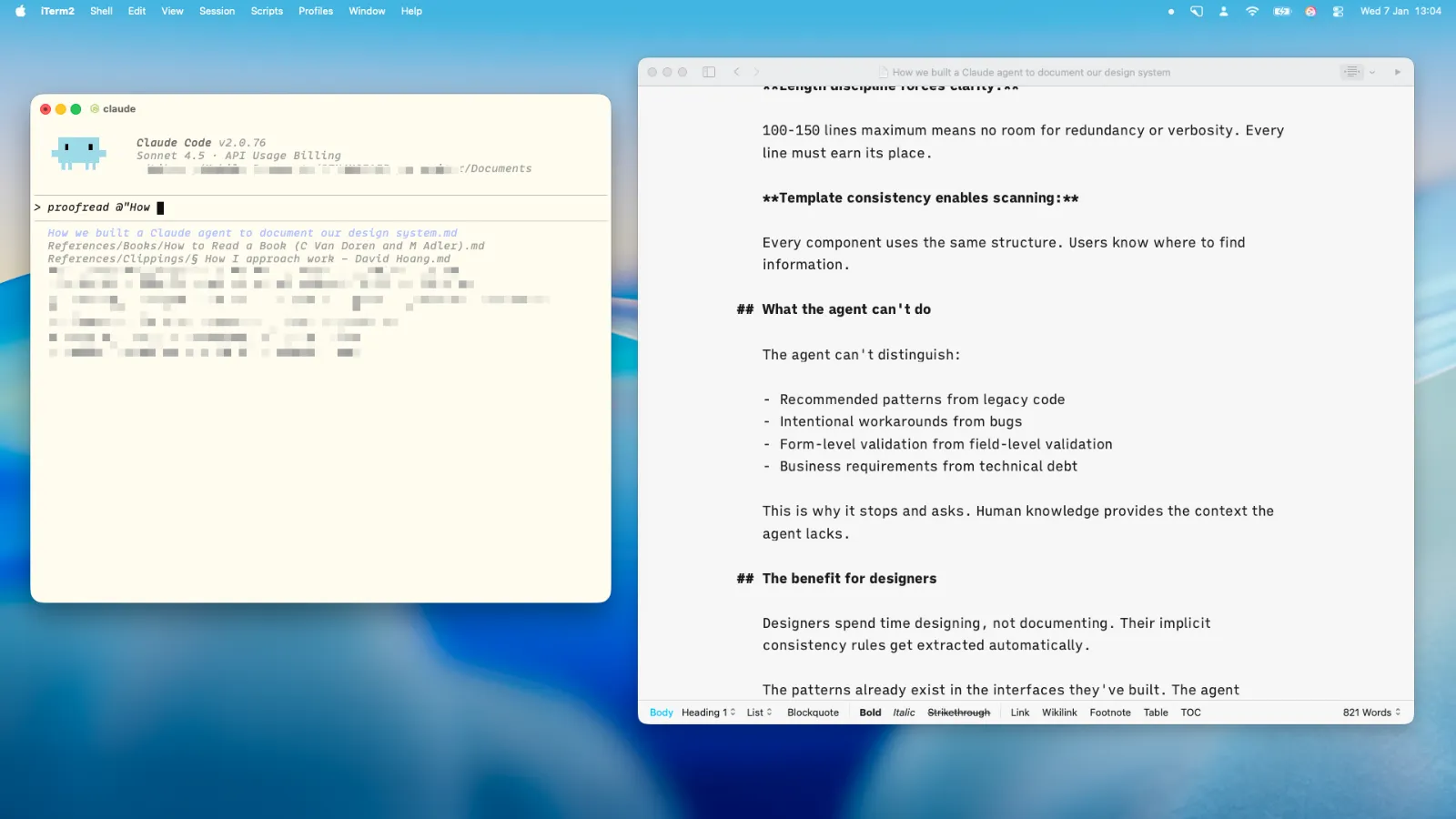
Since my notes are all in local folders, I can quickly open iTerm there and ask Claude to make changes, clean up, etc.
Claude’s memory
When updating Claude’s memory using /memory , you’ll be asked which memory file you want to edit. These are the main differences:
- Project memory – Shared with everyone in this project. This is the
CLAUDE.mdfile - Project memory (local) – Personal, for the current project only
- User memory – Personal for all of your projects on the current machine
If you want to learn more about how to work with Claude Code, this series of videos gives a great overview:
